Contents
- Start with the how-to video
- Before you start: know who does what
- 1. Start the inheritance request
- Wait through the timelock
- 2. Contact the Guardians
- Confirm the request on the Guardian’s device
- 3. Transfer the inherited vault assets
- Review the assets - and protect your own vault
- Advanced tip: make inheritance alerts harder to miss
As the designated beneficiary, you can claim the digital assets backed up in a Vault12 vault when the owner passes away or becomes incapacitated. Start with our short video, or follow the steps below.
This guide explains how crypto inheritance works in Vault12 Guard: start an inheritance request, wait through the owner’s configured timelock, get Guardian confirmations, and transfer the inherited vault assets. It also covers how the owner can block an unwanted request and how to protect your own vault afterward.
Start with the how-to video
The short how-to video below walks you through the full process in about two and a half minutes. Start there, then use the step-by-step guide for details, extra context, and practical tips to improve security.
Before you start: know who does what
The owner must have set up inheritance and confirmed you as the beneficiary in advance.
In our example, Bob’s father has three Guardians: his own iPad, his son Bob, and his lawyer Douglas. Bob is also the confirmed beneficiary.
The vault uses a 2-of-3 Guardian threshold. Because Bob is already a Guardian, he needs just one additional confirmation - from the iPad or Douglas.
Tip: Being a Guardian does not automatically make someone a beneficiary. Check that the owner has assigned both roles where intended.
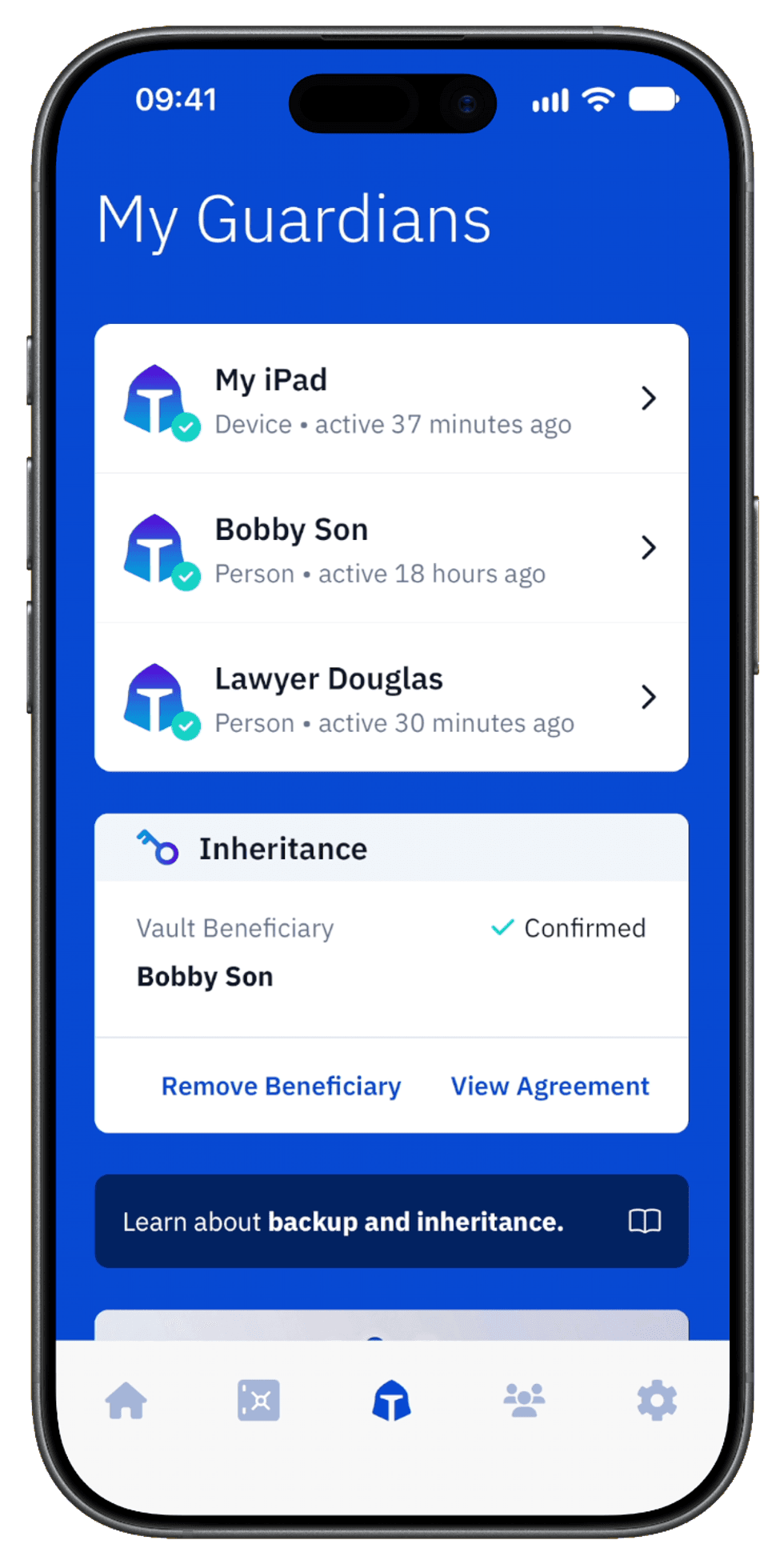
Owner’s iPhone: Bob is both a Guardian and the confirmed beneficiary
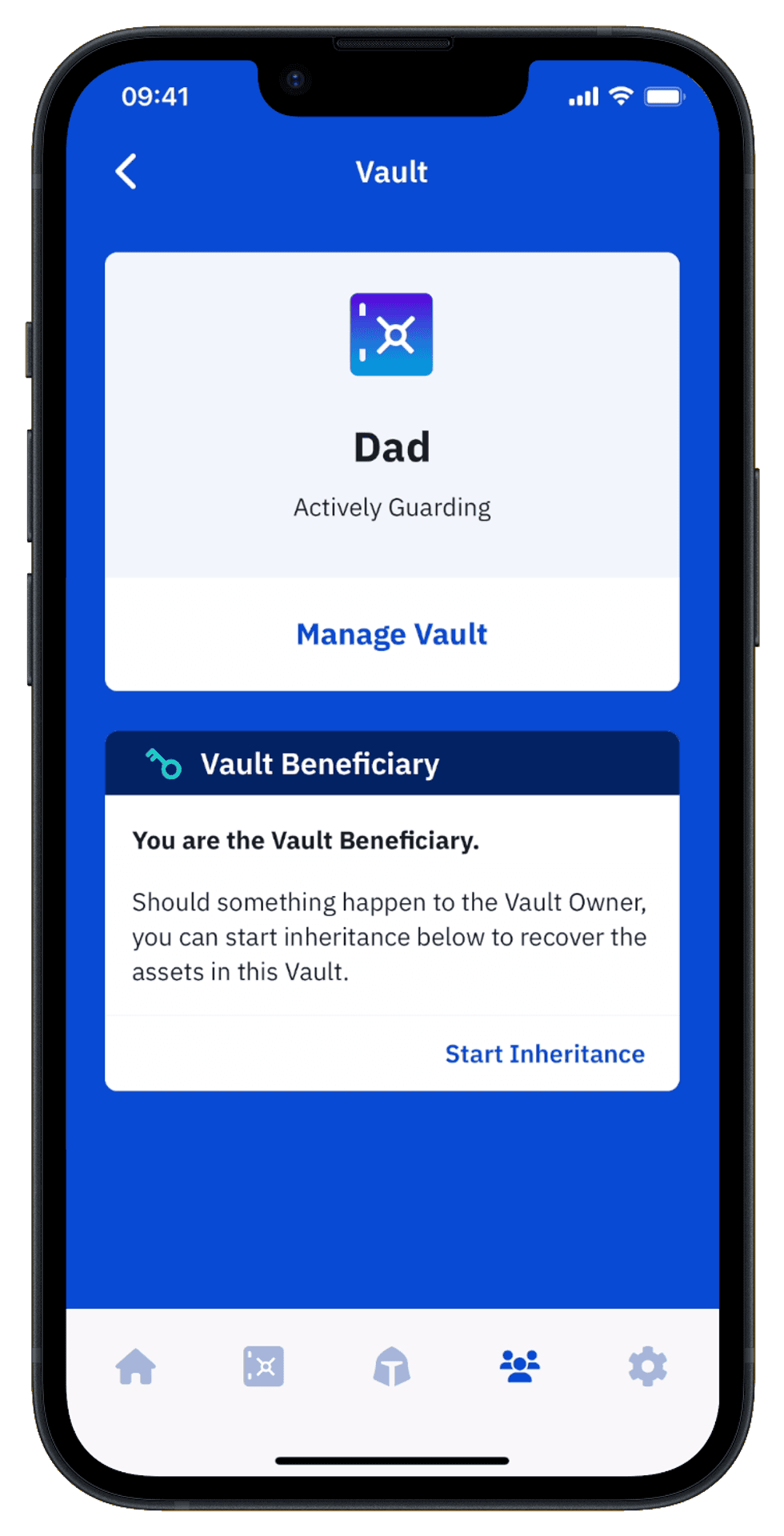
Beneficiary’s iPhone: open Dad’s vault and select Start Inheritance
1. Start the inheritance request
On your device:
- Open Vault12 Guard.
- Tap Guarding Vaults.
- Select the owner’s vault.
- Tap Start Inheritance.
- Confirm that you are ready.
You will see:
- The owner’s configured timelock begins.
- An inheritance notification is sent to the owner’s device.
Tip: Start only when inheritance is appropriate. This action begins a protected request; it does not immediately unlock the assets.
Wait through the timelock
The timelock gives the owner time to stop an unwanted or mistaken request.
During this stage:
- On the beneficiary’s device, the countdown shows the remaining waiting period.
- On the owner’s device, Block Request lets the owner stop the request.
- Transfer Vault Assets stays unavailable.
Our example shows a two-day waiting period. The duration is configurable, so follow the countdown shown in your app.
Even after the countdown ends, Guardian confirmations are still required.
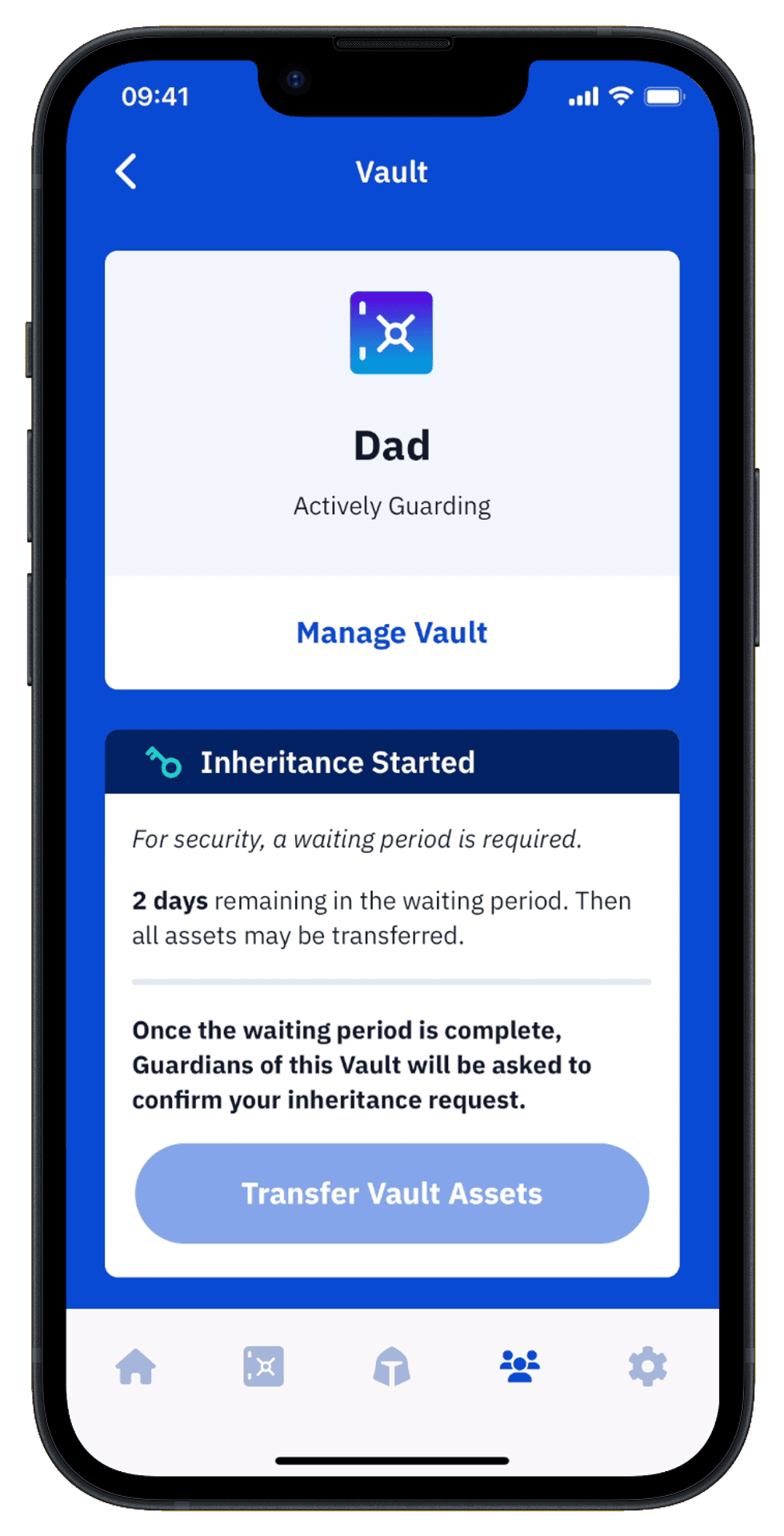
Beneficiary’s iPhone: the timelock is running; assets cannot be transferred yet.
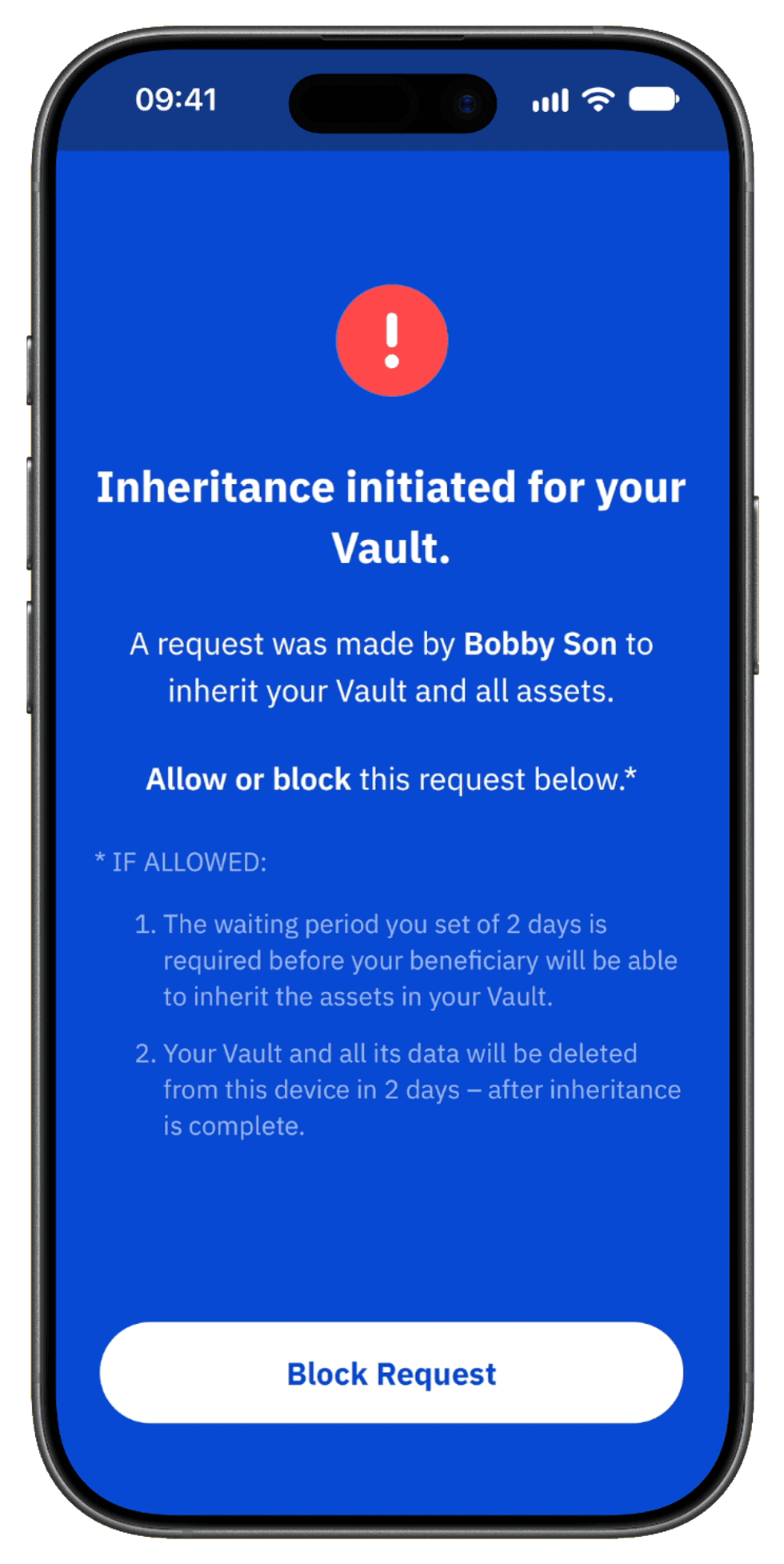
Owner’s iPhone: Block Request lets the owner stop an unwanted request during the timelock.
2. Contact the Guardians
When the waiting period ends:
- Tap Contact Guardians.
- Check how many additional confirmations you need.
- Review the contact details and instructions shared by the owner.
- Contact a Guardian by phone or another channel you already use.
- Ask them to confirm the inheritance request in Vault12 Guard.
Bob can use his father’s iPad or contact Douglas. Either can supply the one remaining confirmation in this example.
Tip: Follow the owner’s instructions for locating and accessing a device Guardian. If that device is unavailable, contact another listed Guardian.
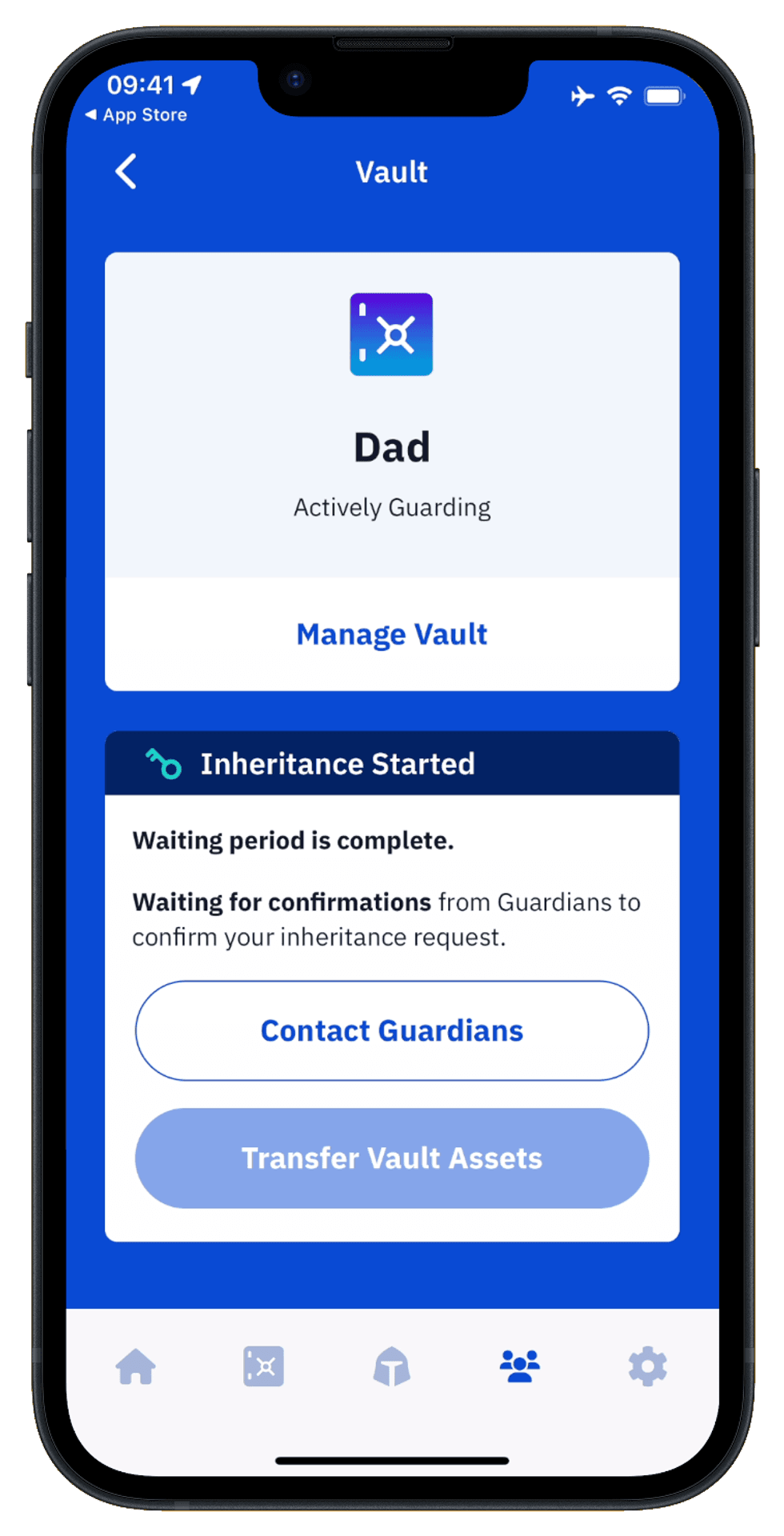
Beneficiary’s iPhone: the waiting period has ended, but Guardian confirmation is still required
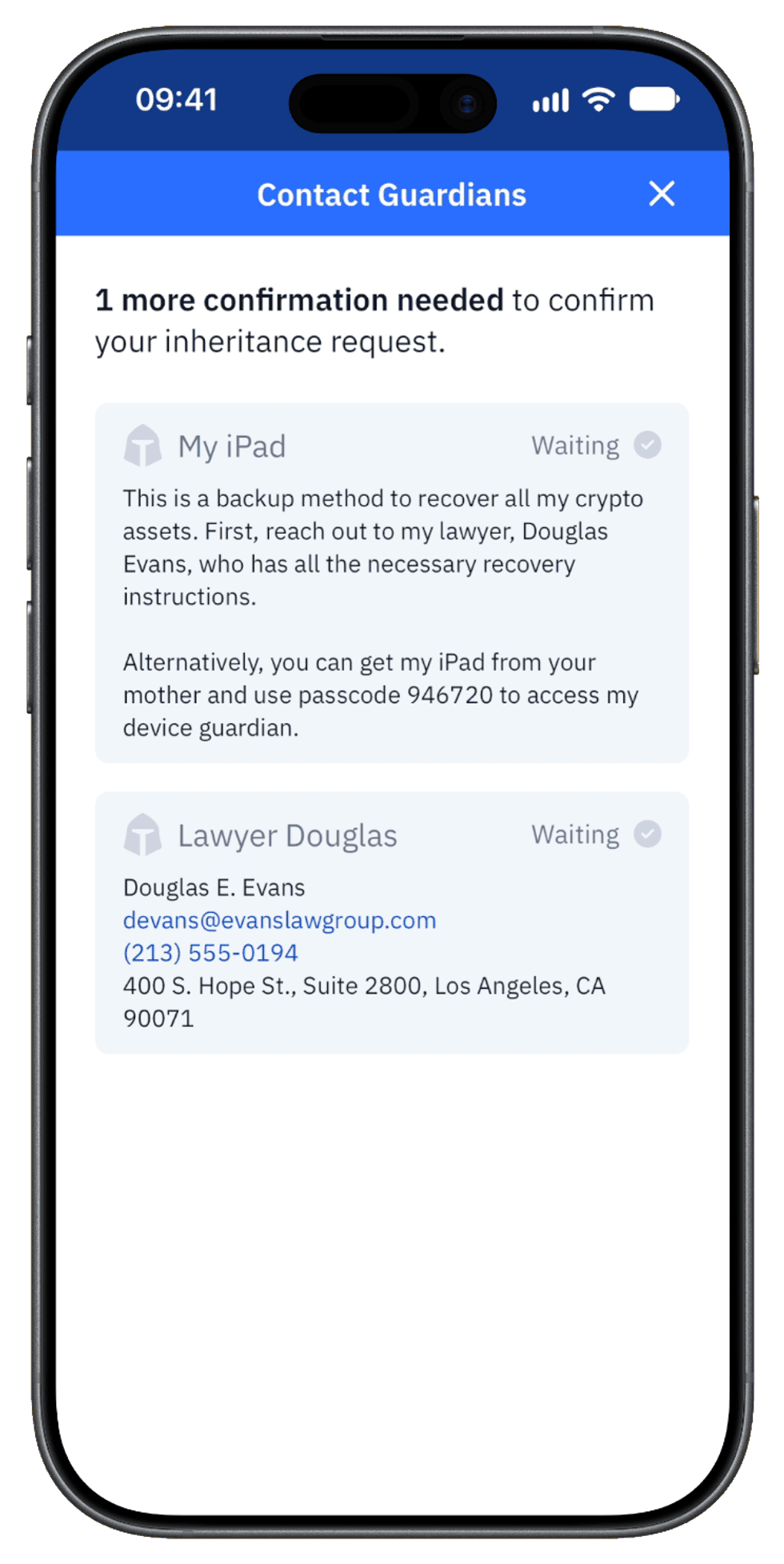
Beneficiary’s iPhone: Bob needs one more confirmation and can use the iPad or contact Douglas.
Confirm the request on the Guardian’s device
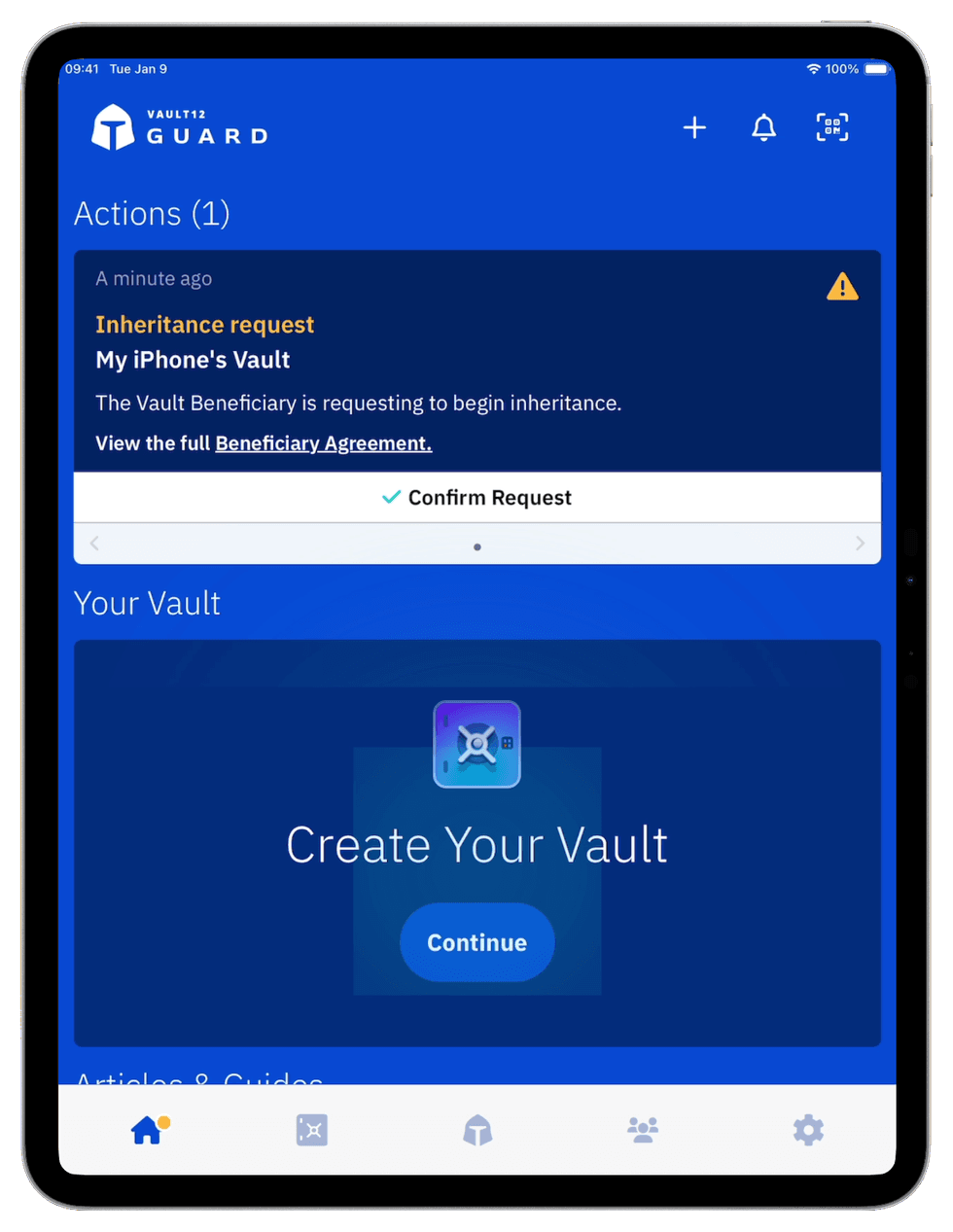
Bob chooses the iPad. On that device:
- Open Vault12 Guard.
- Find the inheritance request under Actions.
- Tap Confirm Request.
On Bob’s phone:
- The iPad’s status changes to Confirmed.
- The vault’s 2-of-3 threshold is met. Douglas does not also need to confirm.
Tip: A human Guardian confirms on their own device. Ask them to review the request before approving it.
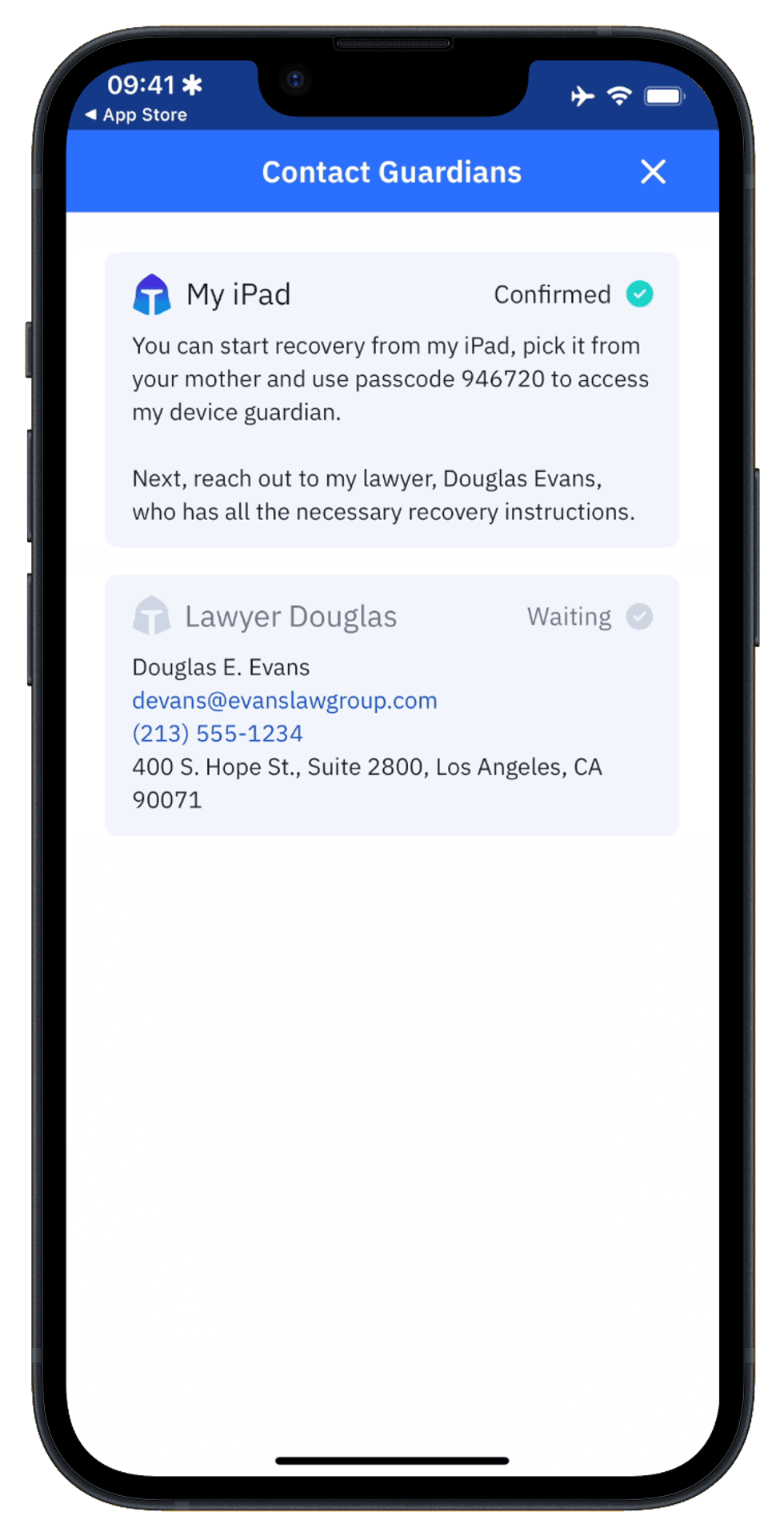
Beneficiary’s iPhone: the iPad’s confirmation has been received.
The beneficiary now has enough Guardian confirmations and can begin transferring the inherited vault assets.
Tip: The number of confirmations required depends on the Guardian threshold the owner selected when creating the vault. This example uses a 2-of-3 threshold, so Bob’s own confirmation as a Guardian plus one additional Guardian confirmation is enough to proceed.
3. Transfer the inherited vault assets
On your device:
- Return to the inherited vault.
- Check that Transfer Vault Assets is available.
- Tap Transfer Vault Assets.
The inherited assets are transferred into your vault. This walkthrough covers the digital assets backed up in the owner’s Vault12 vault, including wallet backups and other stored items.
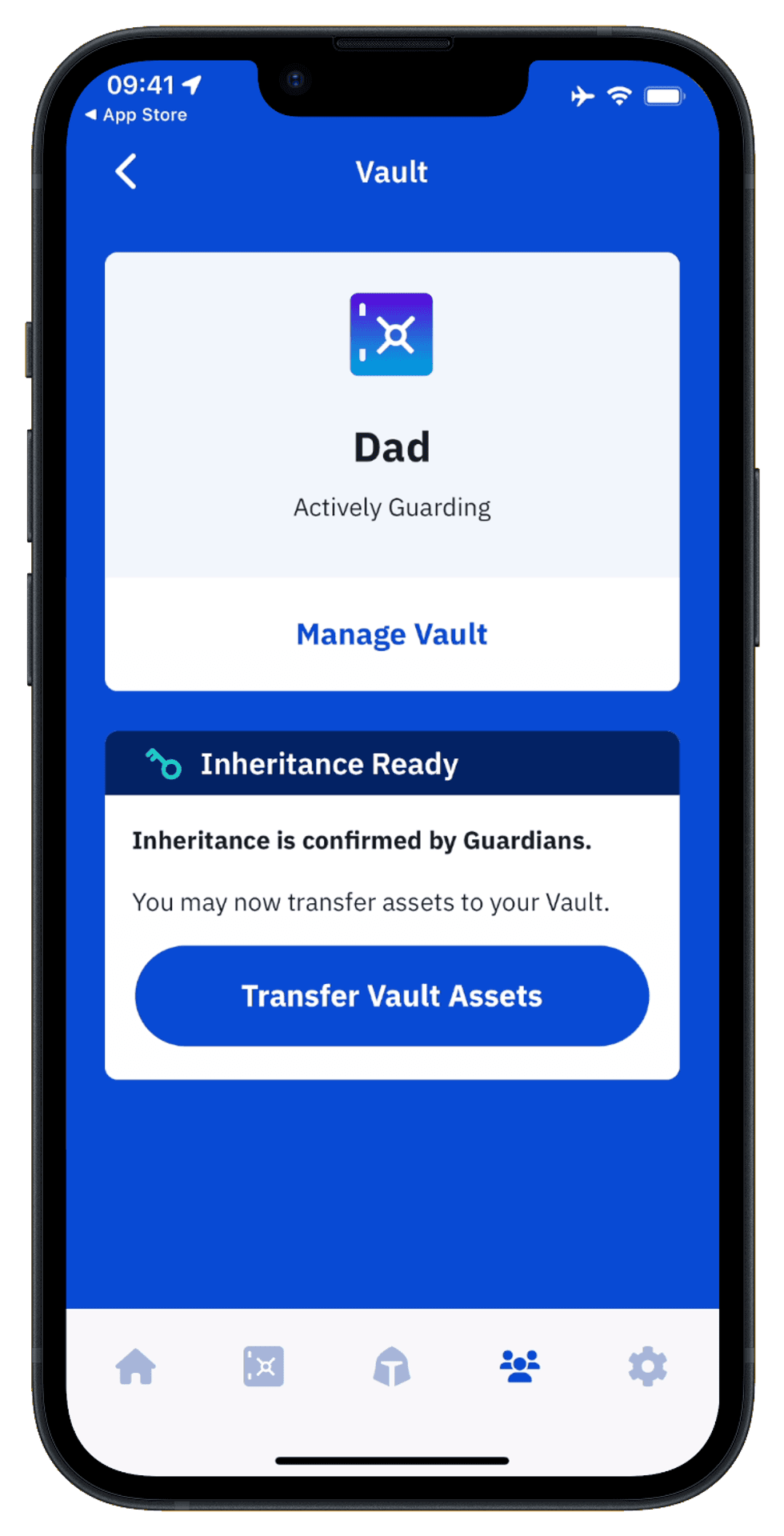
Beneficiary’s iPhone: enough Guardians have confirmed, so Transfer Vault Assets is available.
Review the assets - and protect your own vault
After the transfer:
- You will see confirmation that inheritance is complete.
- Tap View Assets.
- Review the inherited items.
Follow the owner’s instructions for their intended distribution, including any applicable Will or Living Trust.
Next, protect your own vault:
- Choose your own Guardians to enable Distributed Backup.
- Set up Inheritance for your beneficiary.
The final screen in this example shows Local storage only. Receiving assets is not the same as backing them up with your own Guardians.
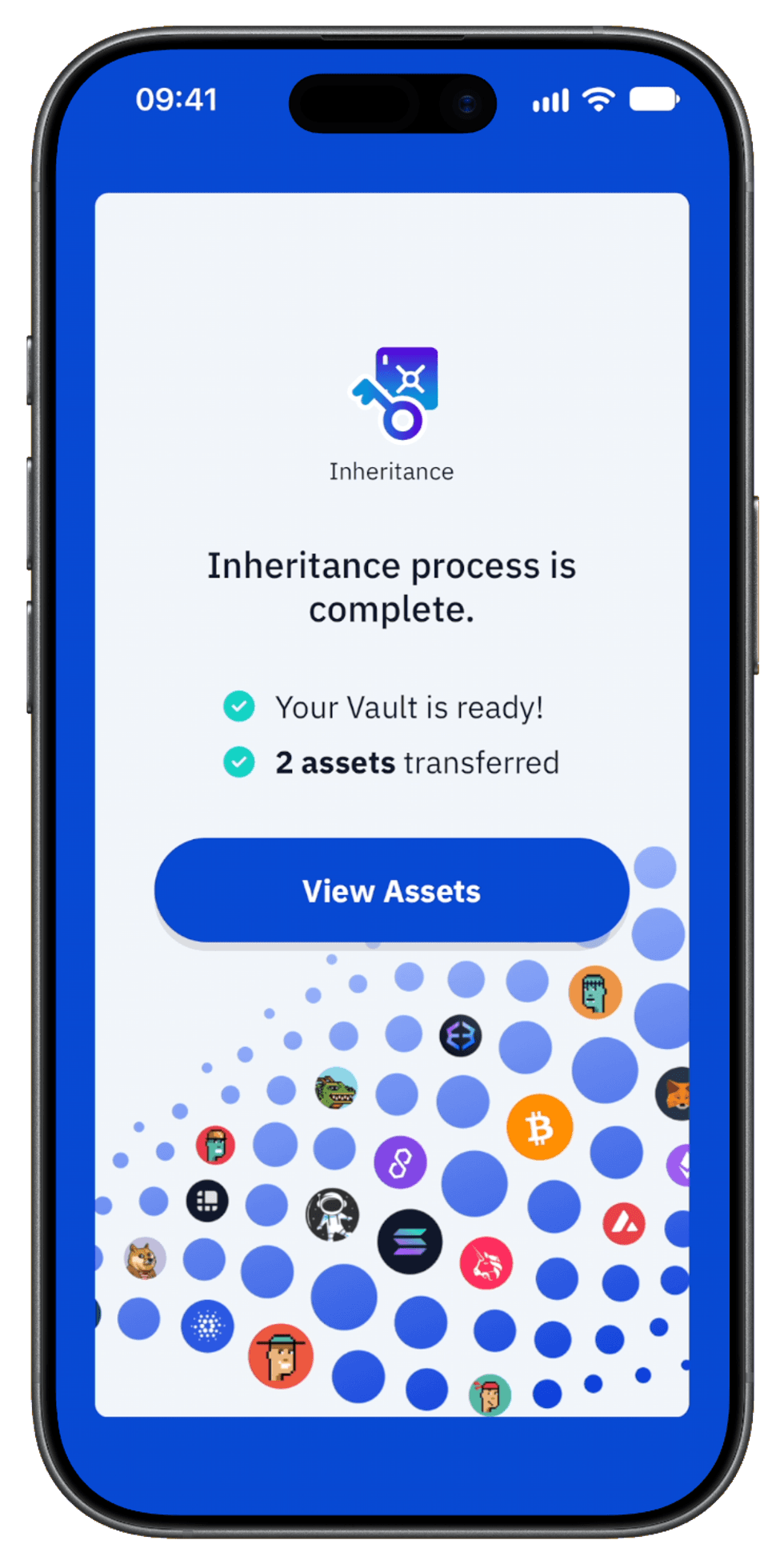
Beneficiary’s iPhone: the inheritance is complete; select View Assets.
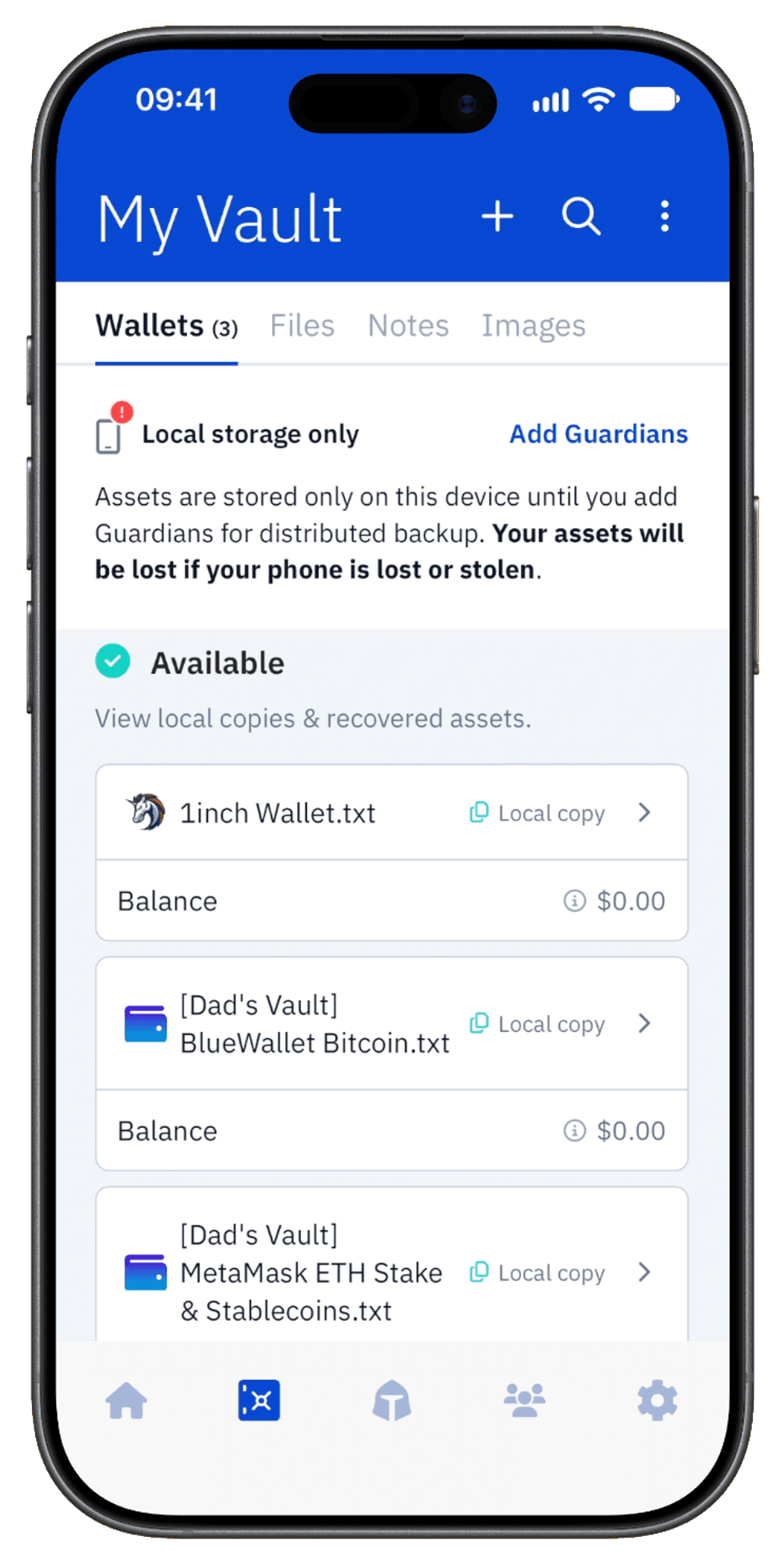
Beneficiary’s iPhone: review the inherited assets, and ready to set up your own protection.
Advanced tip: make inheritance alerts harder to miss
We strongly recommend enabling Persistent notification banners for Vault12 Guard, especially on the vault owner’s iPhone. An inheritance request starts a timelock during which the owner can block an unwanted request. Making alerts easier to notice helps the owner respond in time.
On the owner’s iPhone:
- Open iOS Settings.
- Tap Notifications.
- Scroll down and select Vault12 Guard.
- Turn on Allow Notifications.
- Enable Lock Screen, Notification Centre, and Banners under Alerts.
- Tap Banner Style.
- Select Persistent.
Persistent banners stay on screen until you interact with or dismiss them, rather than disappearing automatically. The screenshot highlights the setting to change.
Tip: Guardians should also enable persistent notifications so they notice confirmation requests in a timely manner. Persistent banners help with visibility.
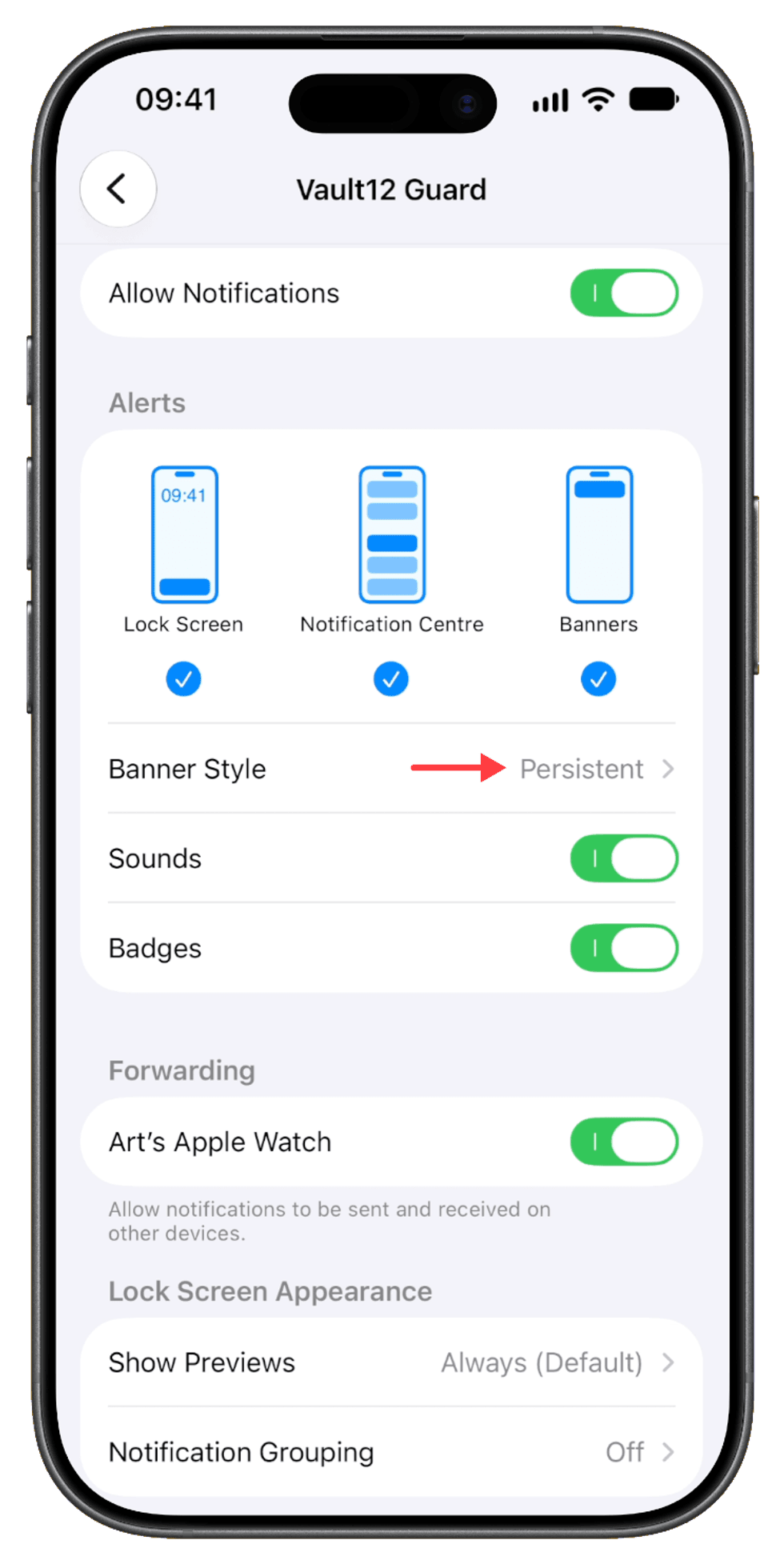
Owner’s iPhone: set Banner Style to Persistent so inheritance alerts are easier to notice.
If you are a lawyer or a crypto investor please view our web seminar hosted by the Chamber of Digital Commerce, with
- Philip C. Berg, Otterbourg P. C.
- Jason Lederman, Senior Associate, Norton Rose Fulbright US LLP
- Wasim Ahmad, Chief Crypto Officer, Vault12
Featured Articles

Vault12
Vault12 is the pioneer in crypto inheritance and backup. The company was founded in 2015 to provide a way to enable everyday crypto customers to add a legacy contact to their cry[to wallets. The Vault12 Guard solution is blockchain-independent, runs on any mobile device with biometric security, and is available in Apple and Google app stores.



Vault12 is NOT a financial institution, cryptocurrency exchange, or custodian. We do NOT hold, transfer, manage, or have access to any user funds, tokens, cryptocurrencies, or digital assets. Vault12 is exclusively a non-custodial information security and backup tool that helps users securely store their own wallet seed phrases and private keys for the purpose of inheritance. We provide no legal or financial services, asset management, transaction capabilities, or investment advice. Users maintain complete control of their assets at all times.
Vault12 Product Demo
Get The Vault12 App Onto Your Phone