1. Use the Recovery Utility when the app cannot be installed
Normally, you would recover your Vault by installing Vault12 Guard on a new device and requesting assistance from your Guardians through the app.
If the app can no longer be downloaded or installed, the open-source Vault12 Recovery Utility (https://github.com/vault12/recovery-utility) provides an alternative recovery method. It reconstructs and decrypts your assets locally on a computer, without reinstalling Vault12 Guard.
2. Locate your exported Vault decryption key
The Recovery Utility first requires the file containing your Vault’s decryption key. This file is to be exported from owner's device with Vault12 Guard app. Follow the steps:
- In the app, go to: Settings → Advanced
- Tap Export My Vault’s Decryption Key
- You will be prompted to save the vault12.json file.
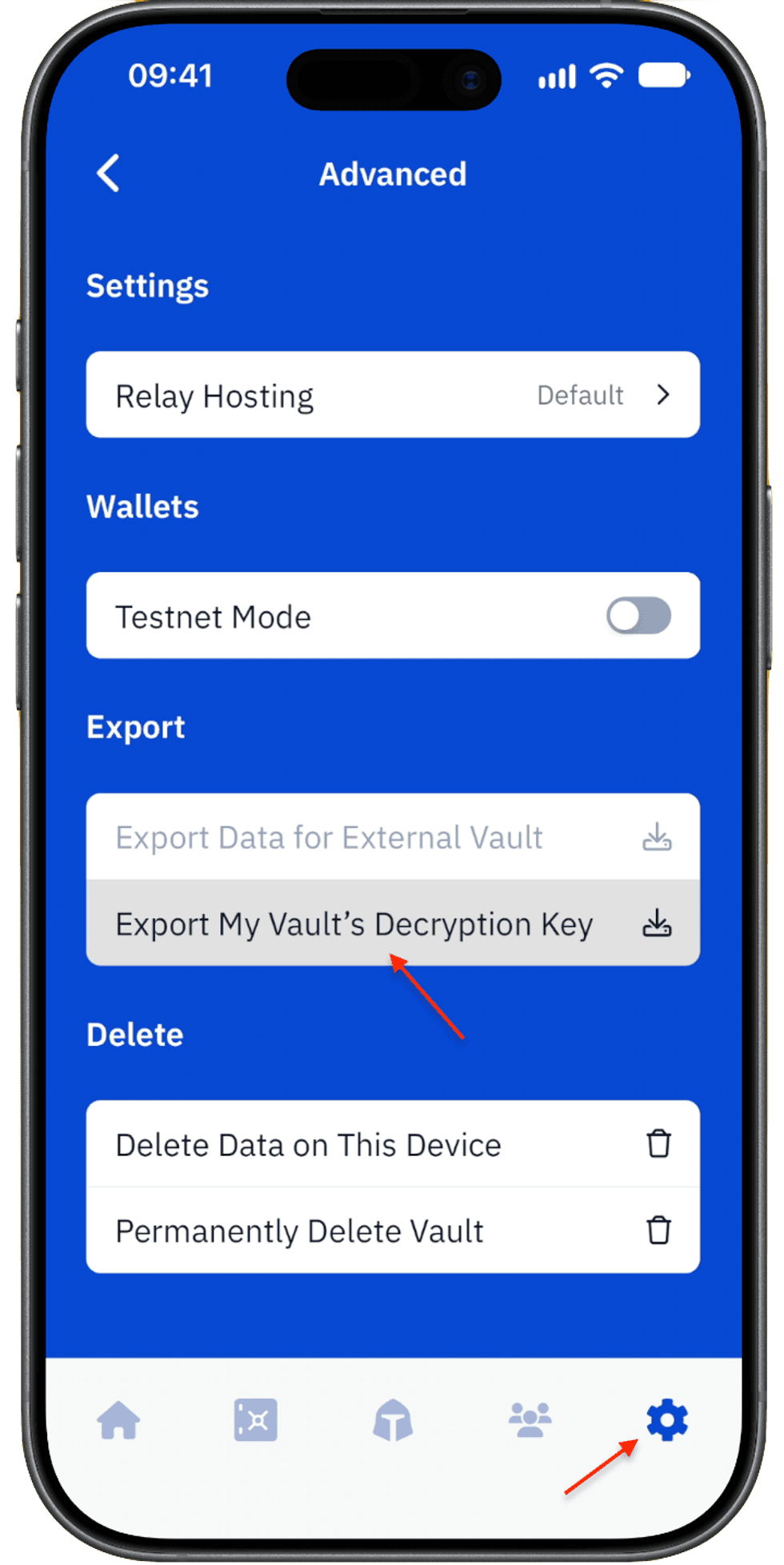
Export the vault decryption key
3. Get the required number of exports from Guardians
Each Guardian helping with the recovery must open Vault12 Guard on their device and follow these steps:
- Go to Settings → Advanced
- Tap Export Data for External Vault
- Select the Owner's vault name and tap Export Data
- Send the generated ZIP archive to the Owner.
Collect ZIP archives from at least the number of Guardians required by your Vault’s initial configuration. For example, if your Vault requires 2-of-3 confirmations, you need valid exports from at least two of your Guardians.
4. Place all recovery files in one folder
Create a folder on your computer — for example, vault12-files — and place the following files inside it:
- Your vault12.json decryption-key file
- The ZIP archive received from each participating Guardian. At least as many Guardian archives as your Vault’s number of minimum confirmations.
Do not rename or extract the Guardian ZIP archives. The Recovery Utility will validate and process them automatically.
5. Run the Vault12 Recovery Utility
- Install Node.js
- Open a terminal, and install the utility with following command:
npm install -g vault12-recovery
- Then run the utility, passing the path to the folder containing the recovery files as an argument:
vault12-recovery ~/vault12-files
The utility will validate the exports, combine the required Guardian fragments, and decrypt the recovered assets locally.
6. Retrieve your recovered assets
After a successful recovery, your assets will be placed in ~/vault12-files/output folder
Review the recovered files and transfer them to an appropriate secure location. Because the recovery folder contains highly sensitive material, securely remove any temporary copies when they are no longer required. Rotation of keys is highly recommended.